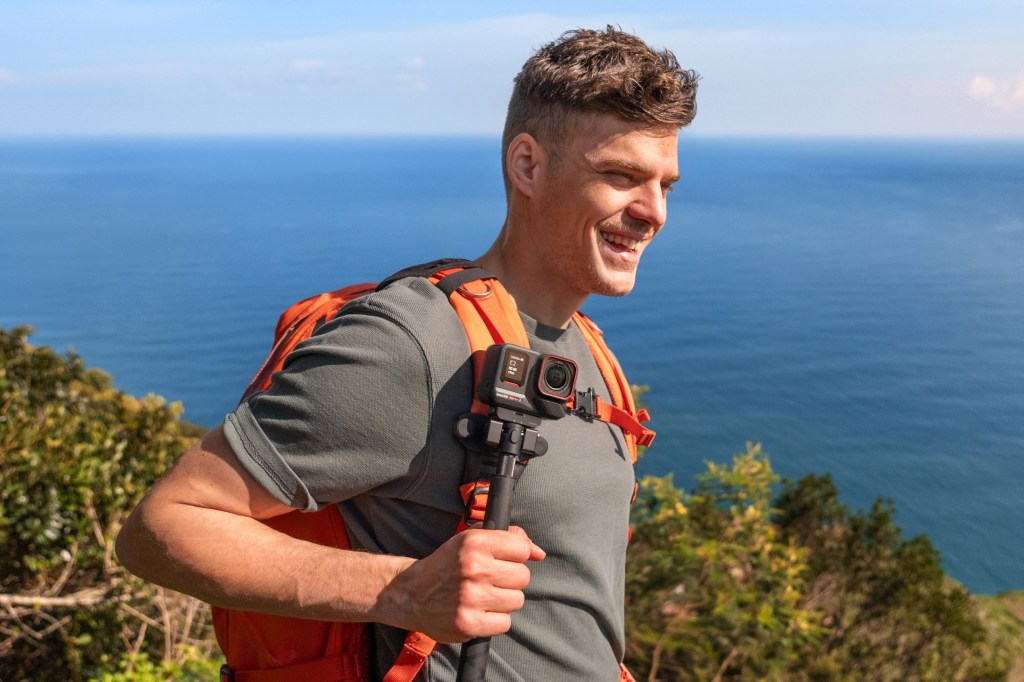
Discover essential Insta360 Ace Pro 2 tips and tricks to elevate your photography and videography skills. This guide covers everything from optimizing image quality to exploring hidden features I bet you didn’t know about.
Table of Contents
- 📸 Introduction to Insta360 Ace Pro 2
- 🌈 Understanding HDR for Better Image Quality
- 🔋 Maximizing Battery Life with Fast Charging
- ⚡ Testing Fast Charging Efficiency
- 🌙 Low Light Performance: Switching to Pure Video Mode
- 🎤 Achieving the Best Audio Quality
- 🔍 Utilizing Clarity Zoom for Enhanced Detail
- 🎥 Recording in 8K: Best Practices
- ✋ Gesture Control: Hands-Free Operation
- 🔄 Reverse Charging: A Unique Feature
- 🎤 Using the Wind Guard for Optimal Audio
- 📊 Overlaying Stats for Enhanced Footage
- 📝 Conclusion and Final Thoughts
- ❓ FAQs about Insta360 Ace Pro 2
📸 Introduction to Insta360 Ace Pro 2
The Insta360 Ace Pro 2 is a cutting-edge action camera designed for adventurers and content creators who demand high-quality imagery. With its advanced features, it empowers users to capture stunning visuals in various environments. One of the standout specs is its impressive dynamic range, which allows for better detail in both bright and dark areas of your shots.
Equipped with a robust sensor and two powerful processing chips, the Ace Pro 2 offers versatility for both photography and videography. Whether you’re shooting in bright sunlight or challenging low-light conditions, this action camera can deliver exceptional results.
Key Features
- 13.5 stops of dynamic range for superior image quality.
- Support for HDR video to enhance visual appeal.
- Fast charging capabilities for extended shooting sessions.
- Advanced low-light performance with dual internal chips.
🌈 Understanding HDR for Better Image Quality
High Dynamic Range (HDR) is a game-changer for capturing images and videos with greater detail. The Insta360 Ace Pro 2 allows users to enable HDR mode, which is crucial for scenes with varying light conditions. This feature helps in preserving highlights and shadows, resulting in a more balanced and vibrant image.
To activate HDR, ensure that you are shooting in the appropriate setting. This mode is not automatically enabled, so it’s essential to check your camera settings before heading out. A side-by-side comparison demonstrates the stark difference in image quality when HDR is turned on versus off.
When to Use HDR
- Bright sunny days with harsh lighting.
- Scenes with significant contrast between light and dark areas.
- Landscape photography to capture details in both shadows and highlights.
🔋 Maximizing Battery Life with Fast Charging
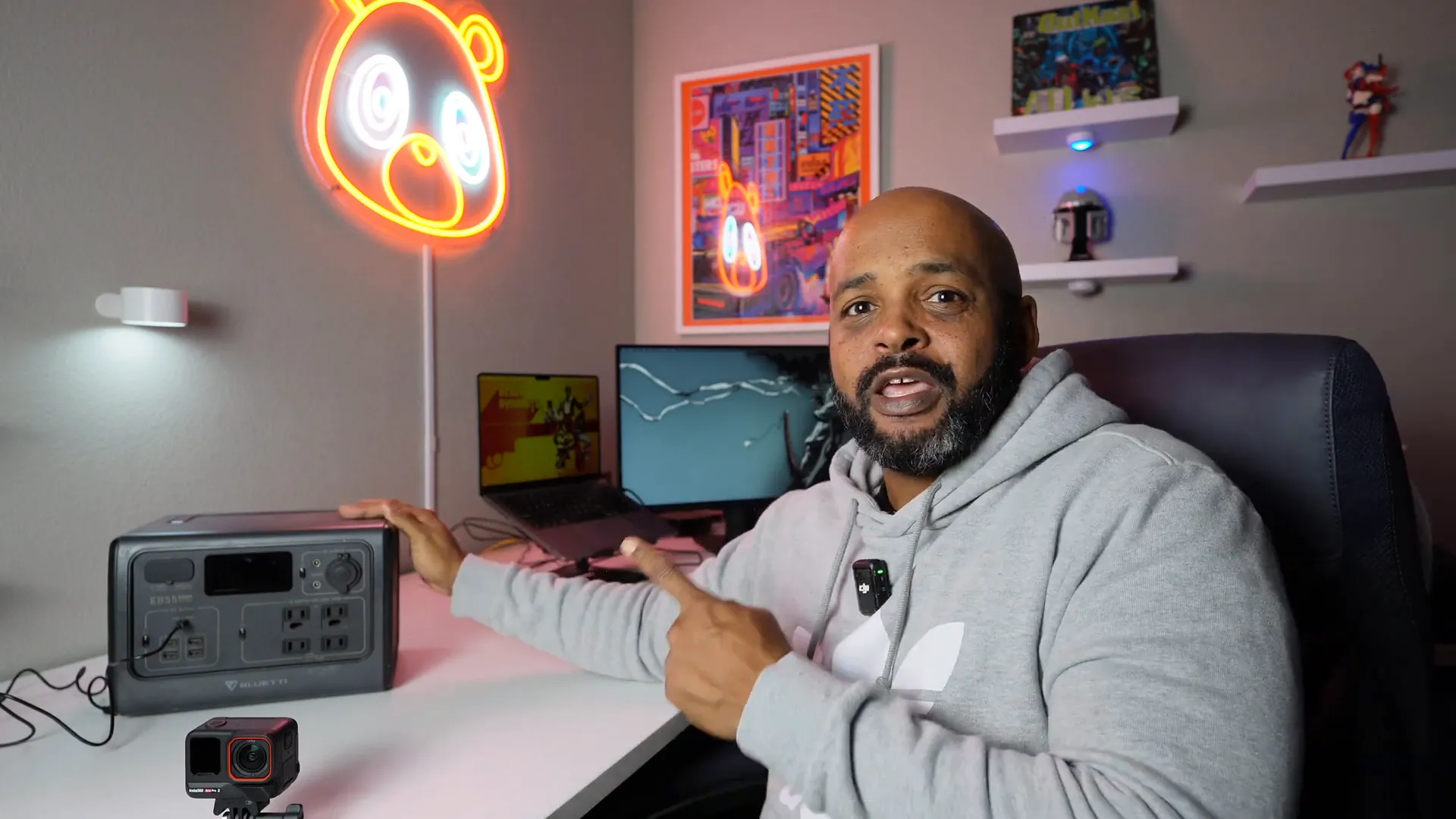
The Insta360 Ace Pro 2 is equipped with PD fast charging, allowing you to quickly recharge your camera and get back to shooting. With the right charger, you can achieve up to 80% battery life in approximately 18 minutes. This feature is a life saver during long shooting sessions when every minute counts.
To ensure optimal charging performance, always use a charger that provides at least 30 watts of power. This will guarantee that you can take full advantage of the fast charging capabilities without any issues.
Battery Life Tips
- Utilize endurance mode to extend battery life by 50%.
- Keep an extra battery handy for longer shoots.
- Monitor battery levels regularly to avoid unexpected shutdowns.
⚡ Testing Fast Charging Efficiency
I put the fast charging feature to the test, by conducting a simple experiment. I started with a fully drained battery and charged it for 18 minutes and it reached 82% charged in that time frame.
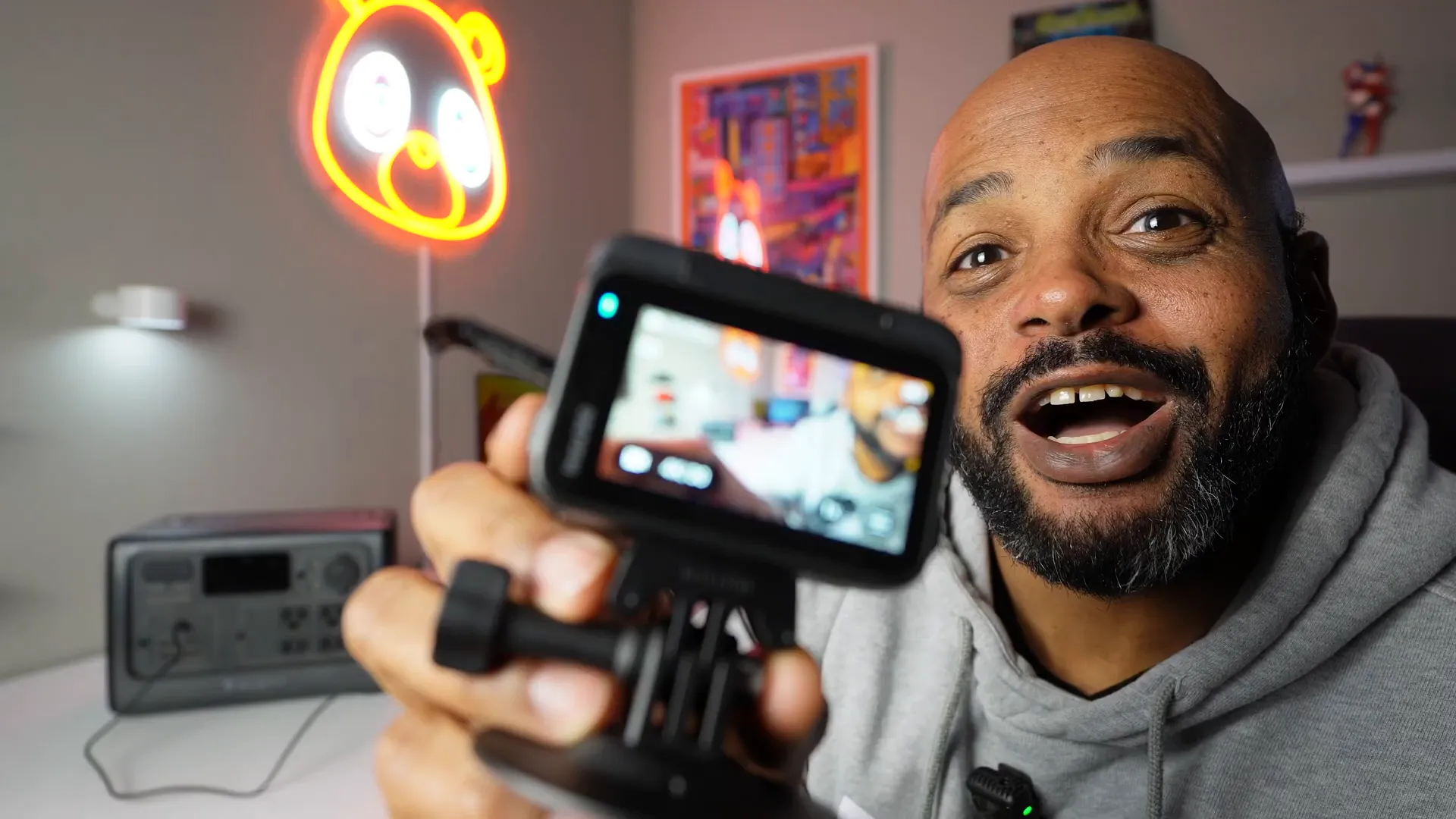
The battery fully charged in 41 minutes and 41 seconds!
🌙 Low Light Performance: Switching to Pure Video Mode
Low light situations can be challenging for many cameras, but the Insta360 Ace Pro 2 excels with its Pure Video mode. This mode is specifically designed to handle low-light environments, providing enhanced clarity and detail. Switching to Pure Video mode is essential for capturing crisp images in dim lighting.
The camera’s dual internal chips work together to reduce noise and improve image processing, making it an excellent choice for night shoots or poorly lit conditions. Remember to set the resolution to 4K at 30 frames per second for optimal results.

🎤 Achieving the Best Audio Quality
Audio quality is just as important as video quality when creating content. The Insta360 Ace Pro 2 offers multiple audio settings to cater to different environments. The voice-enhanced setting is ideal for interviews or vlogs, as it emphasizes spoken words while minimizing background noise.
For windy conditions, switching to wind reduction mode is crucial. This setting helps to capture clear audio without interference from gusts of wind. Experiment with different audio settings to find the best fit for your recording environment.
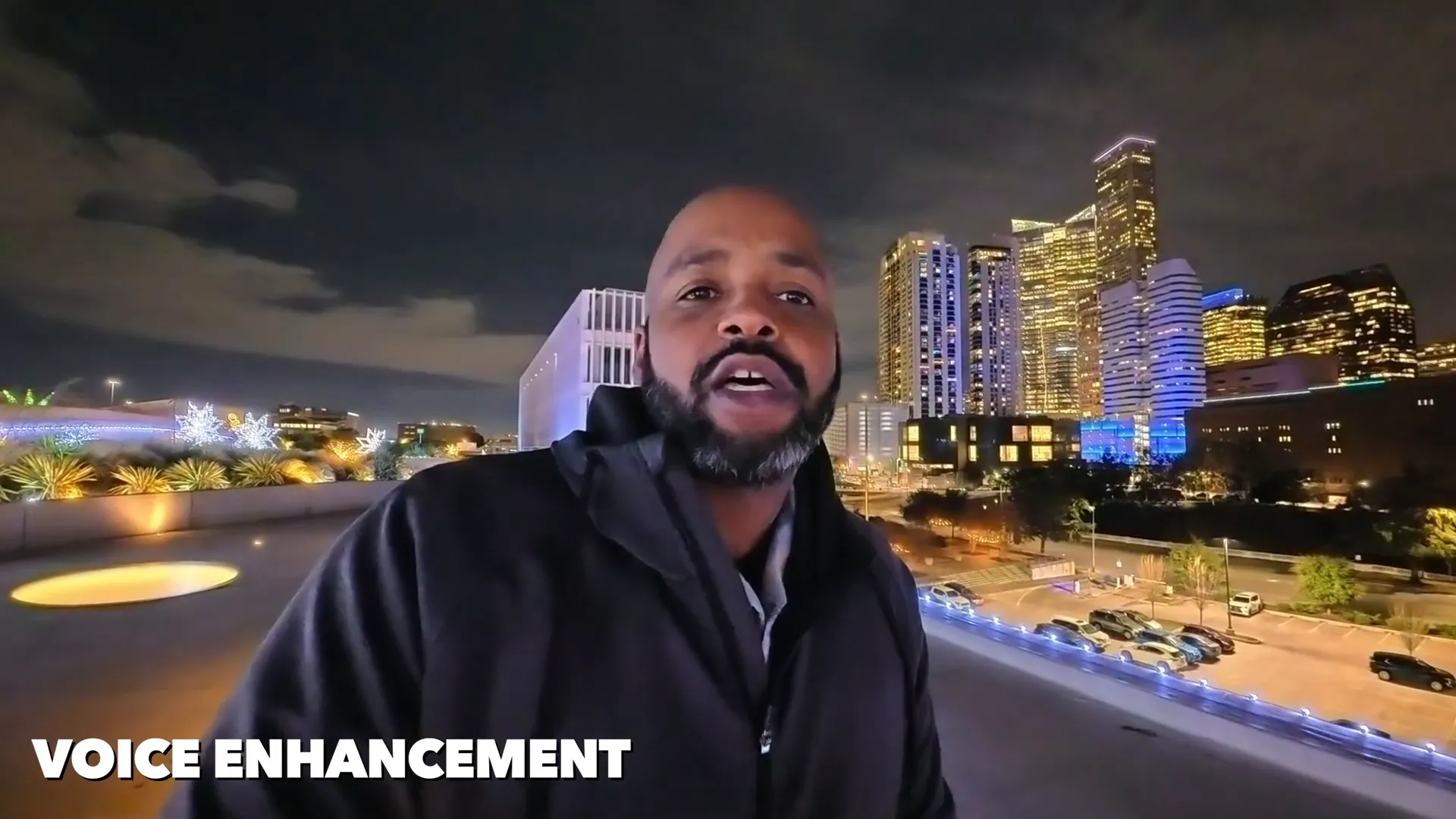
Audio Settings Overview
- Voice Enhanced: Best for dialogue-heavy recordings.
- Wind Reduction: Ideal for outdoor shoots with wind.
- Stereo: Captures the true sound environment for a more immersive experience.
🔍 Utilizing Clarity Zoom for Enhanced Detail
The Clarity Zoom feature on the Insta360 Ace Pro 2 allows you to zoom in without sacrificing image quality. This is made possible by the camera’s 8K sensor, which enables you to maintain clarity even when zoomed in two times. This capability is particularly useful for capturing fine details in your shots.
To use Clarity Zoom, simply double-tap on the screen while focusing on your subject. This feature is a significant upgrade from traditional digital zooms that often result in pixelation and loss of detail.

Best Practices for Clarity Zoom
- Use in well-lit environments for optimal detail.
- Combine with stable shooting techniques to avoid motion blur.
- Experiment with different subjects to see the effects of zoom in various settings.
🎥 Recording in 8K: Best Practices
Recording in 8K with the Insta360 Ace Pro 2 can elevate your footage to new heights, providing stunning detail and clarity. However, it’s essential to use this feature wisely to maximize its benefits.
First, ensure you are shooting on a bright, sunny day. This will help the camera capture the best possible image quality without introducing noise. Avoid using 8K in action shots, as fast movements can lead to less stable footage.
Instead, focus on stable shots, such as landscapes or architectural details. Also, consider recording in short bursts, as 8K can drain the battery quickly and generate heat. This approach allows you to use the high resolution effectively while preserving battery life.

300% crop!
8K Recording Tips
- Record in bright environments for optimal results.
- Avoid fast-paced action shots to maintain stability.
- Use 8K for detailed shots that may require cropping in post-production.
✋ Gesture Control: Hands-Free Operation
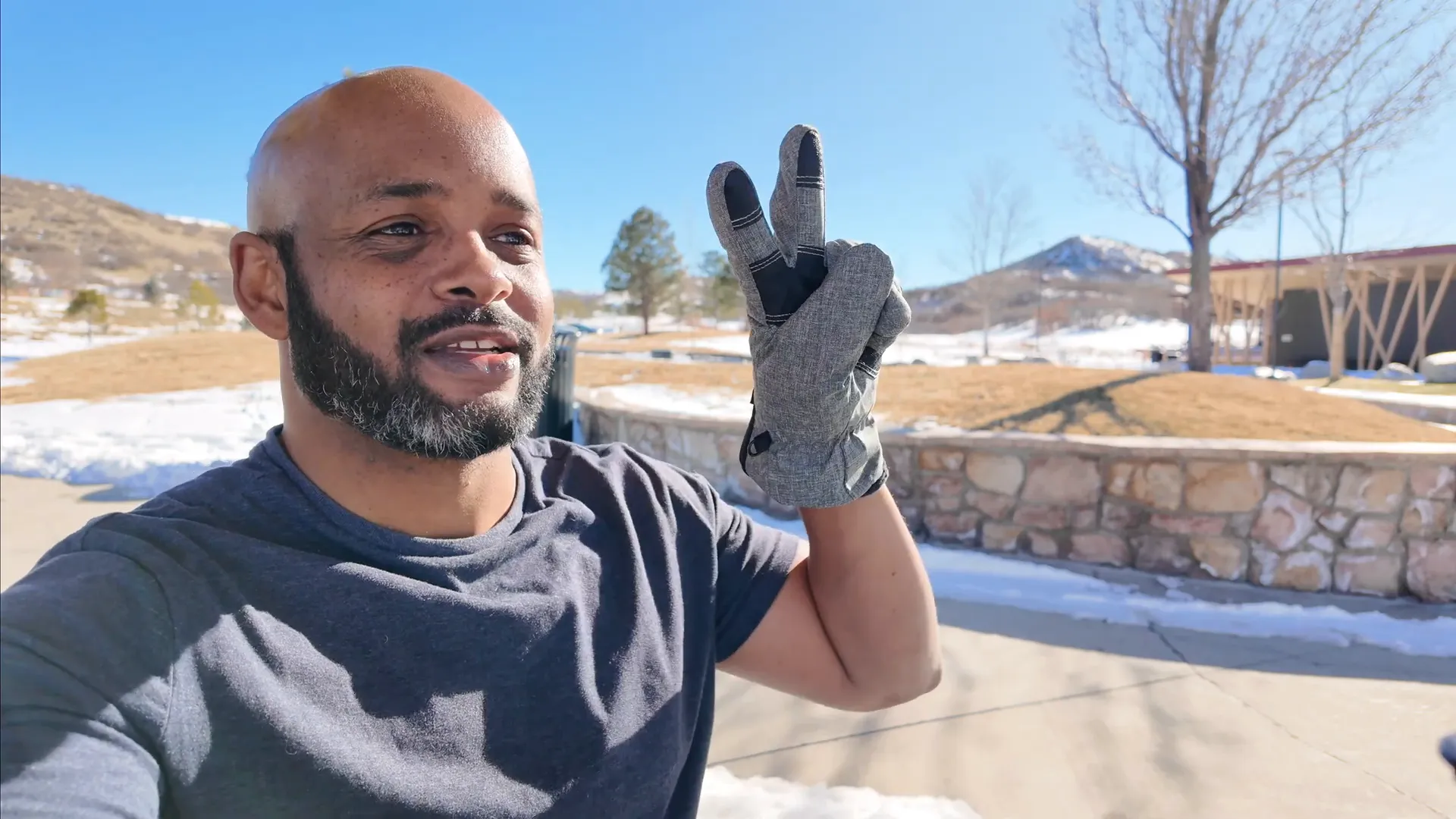
Gesture control is a fantastic feature of the Insta360 Ace Pro 2, especially for those who often find themselves in gloves or busy environments. This hands-free operation allows you to start and stop recording without physically touching the camera.
To activate gesture control, simply enable it in your camera settings. Once activated, you can raise your hand to start recording. A peace sign will trigger the camera to snap a picture. This feature is incredibly useful for activities like skiing or snowboarding, where manual operation may be challenging.
Tips for Using Gesture Control
- Ensure gesture control is enabled before starting your activity.
- Practice the gestures to become familiar with them.
- Keep the camera within the frame of your gestures for better recognition.
🔄 Reverse Charging: A Unique Feature
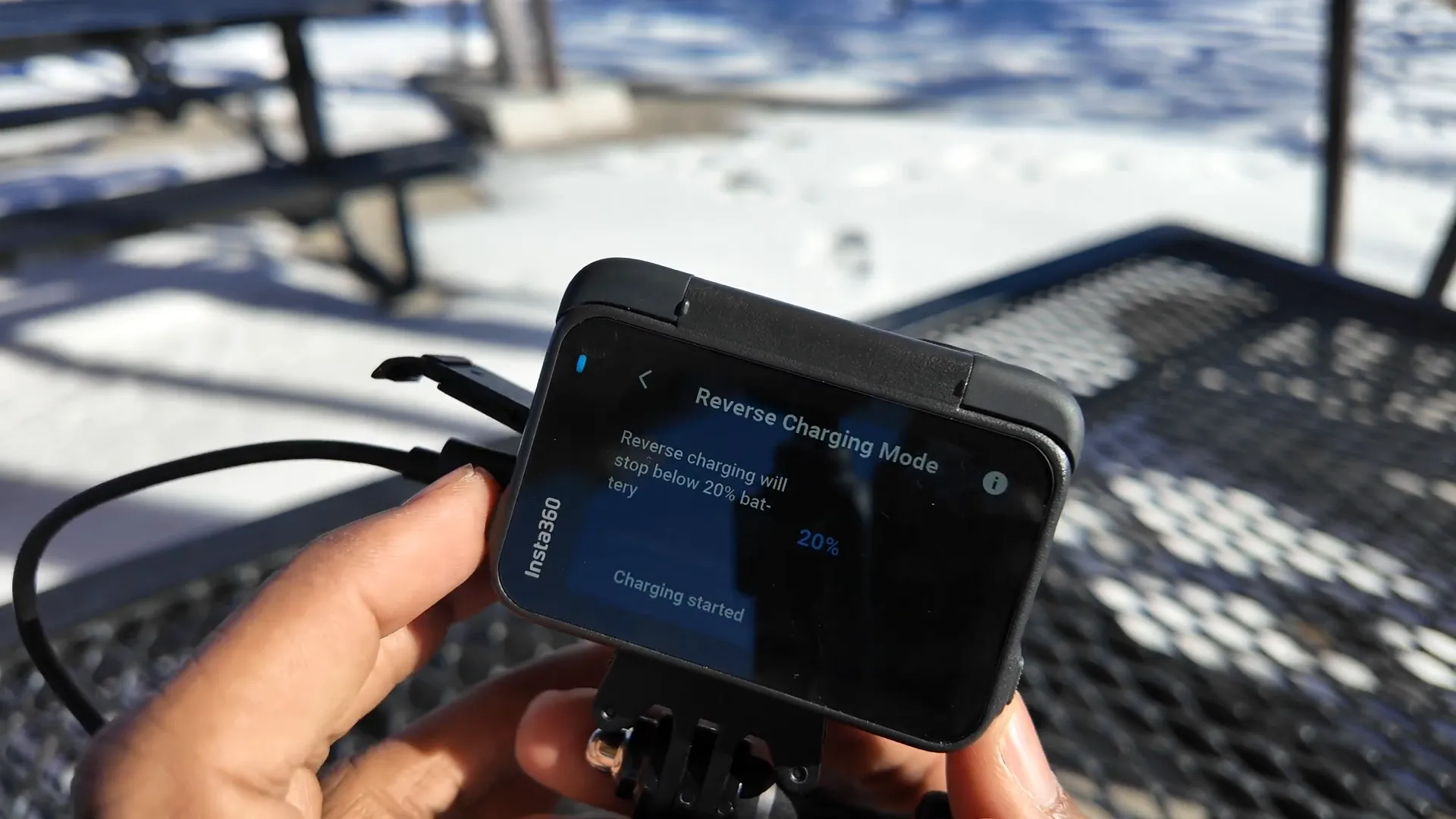
One of the standout features of the Insta360 Ace Pro 2 is its reverse charging capability. This allows you to use the camera’s battery to charge external devices, such as your smartphone, while you’re on the go.
To use reverse charging, connect your device via a USB-C cable, and enable the reverse charging mode in the camera settings. This feature is particularly handy during long hikes or outdoor adventures when your phone battery may be running low.
Reverse Charging Tips
- Check the battery level before using reverse charging to avoid draining your camera.
- Set the reverse charging threshold in the settings to prevent overuse.
- Keep a USB-C cable handy for quick connections.
🎤 Using the Wind Guard for Optimal Audio
When recording outdoors, wind noise can significantly affect audio quality. The Insta360 Ace Pro 2 comes with a wind guard that helps mitigate this issue, ensuring clear sound even in breezy conditions.
Always attach the wind guard when shooting outside, unless you’re in a situation where water exposure is likely. The guard is easy to attach and remove, making it a convenient accessory for various shooting scenarios.

Wind Guard Usage Tips
- Use the wind guard for all outdoor recordings to ensure clear audio.
- Remove it when shooting near water to prevent damage.
- Test audio quality with and without the wind guard to understand its effectiveness.
📊 Overlaying Stats for Enhanced Footage
Overlaying stats onto your footage can provide valuable context and enhance the viewing experience. The Insta360 Ace Pro 2 allows you to record GPS data directly through the Insta360 app, making it easy to add overlays such as speed, distance, and elevation.
To use this feature, connect your camera to the app and enable GPS tracking before starting your activity. After your ride, you can easily add the recorded stats to your video, creating a more engaging and informative piece of content.

Stats Overlay Tips
- Connect your camera to the app before starting your activity.
- Choose the relevant data you want to overlay for your footage.
- Customize your overlays for better presentation based on your audience’s interests.
📝 Conclusion and Final Thoughts
The Insta360 Ace Pro 2 is packed with features that can significantly enhance your photography and videography. By following these tips and tricks, you can unlock the full potential of your camera, ensuring you capture stunning visuals no matter the environment.
From mastering 8K recording to utilizing gesture control and reverse charging, each feature adds a layer of versatility to your shooting experience. Don’t forget to experiment with audio settings and overlays to elevate your content further.
With practice and exploration, you’ll find that the Insta360 Ace Pro 2 is not just an action camera; it’s a powerful tool for creative expression.
❓ FAQs about Insta360 Ace Pro 2
What is the best mode for low-light shooting?
For low-light conditions, switch to Pure Video mode to maximize clarity and reduce noise.
Can I use the Insta360 Ace Pro 2 while charging?
Yes, you can use the camera while it’s charging, but performance may vary based on settings and usage.
How long does the battery last when recording in 8K?
Battery life can vary, but expect reduced recording times. It’s best to record in shorter bursts to manage battery and heat.
Is it possible to customize audio settings?
Yes, the camera offers multiple audio settings, including wind reduction and voice enhancement, which can be adjusted based on your environment.
How do I enable GPS tracking for overlays?
Connect your camera to the Insta360 app, enable GPS tracking in the settings, and start recording to collect data for overlays.

This site contains affiliate links to products. I may receive a commission for purchases made through these links.
 A.V. with Rodney
Leave a comment