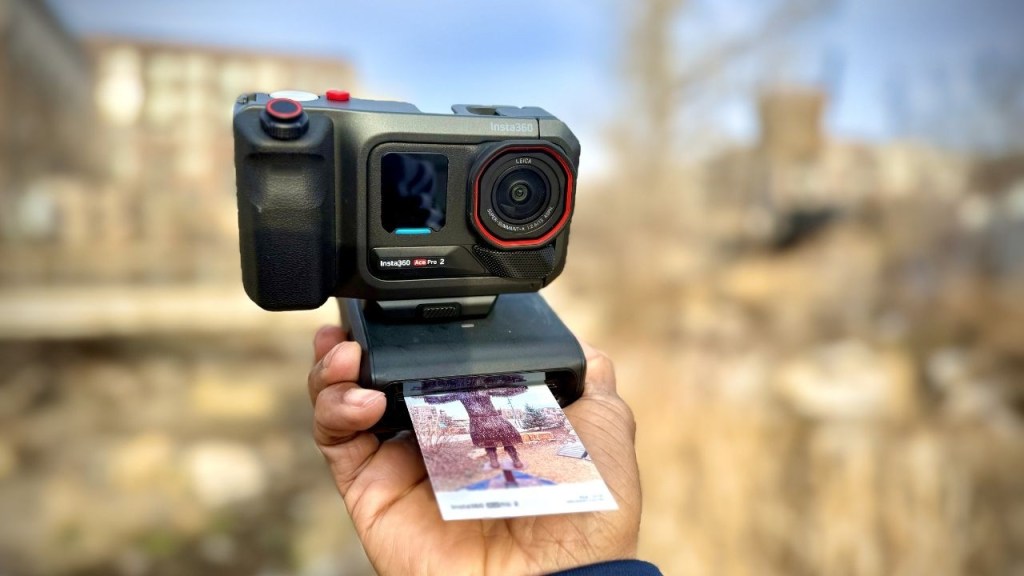
If you have been paying attention to camera trends lately, you have probably noticed a shift away from chasing 8K sharpness and toward something much more human. People want to capture real moments, then hold a physical photo in their hands. That is exactly where the Insta360 Pocket Printer fits in.
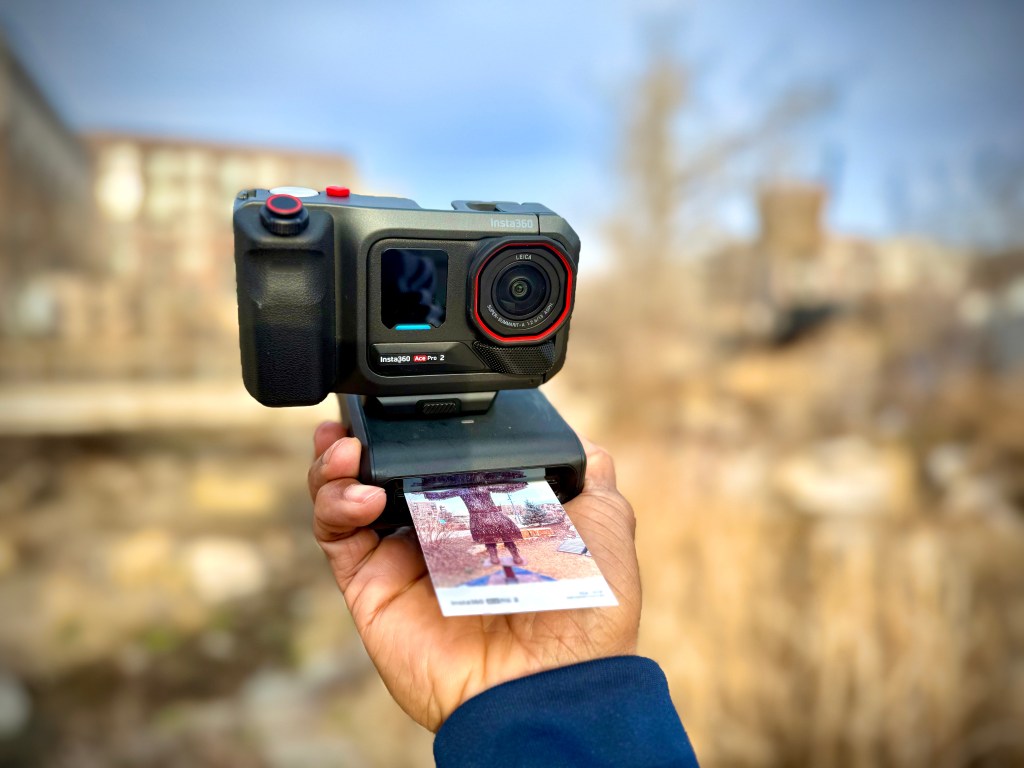
Paired with the Insta360 Ace Pro 2 (and optionally the Xplorer Grip Pro), it turns your camera into an instant print machine. But the best part is flexibility: you do not have to carry the full kit just to print. You can print directly from the Ace Pro 2, or even from your phone using the Insta360 app.
Why Instant Photo Is Making a Comeback
Digital is awesome, but it has one downside: the memories can feel kind of… temporary. Instant photo culture solves that by giving you a tangible keepsake right away.
Instead of “I will get to it later,” you get a print on the spot. And if you like experimenting with settings and lighting, printing immediately makes those changes feel more interactive and fun. The goal is not perfection. It is connection.
What the Insta360 Pocket Printer Setup Includes
The insta360 pocket printer is designed to be simple and portable enough to toss in a bag when inspiration hits.
In the box, you generally get:
- Pocket printer
- Photo cartridge (includes photo sheets)
- Adapter mount
- USB-C cable
- Carrying bag for storage
Each cartridge comes with 10 photo sheets, and the install process is straightforward.
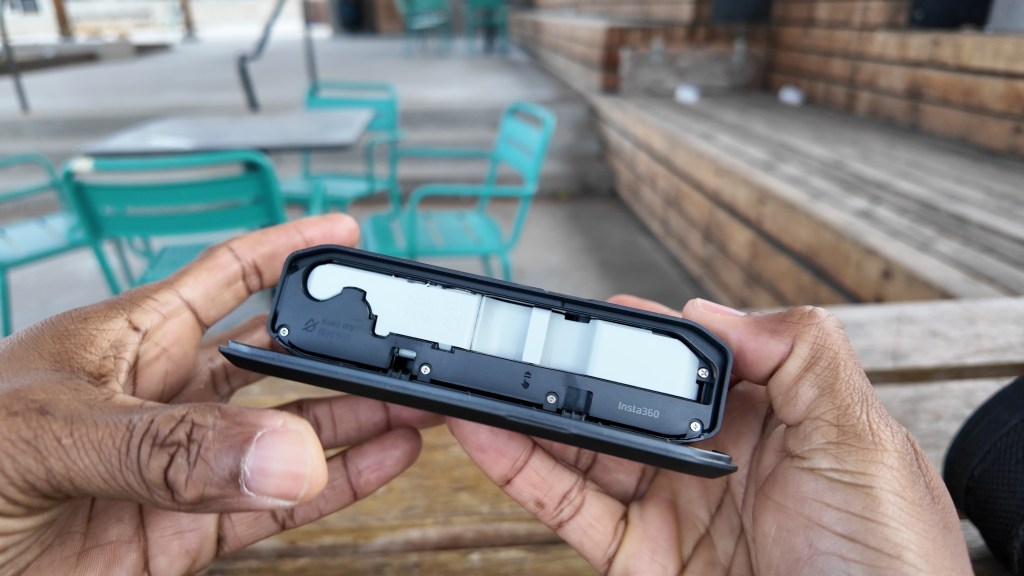
The adapter mount attaches to the Explorer Grip Pro, then the printer slides on neatly.
Turning the Ace Pro 2 Into a Casual Point-and-Shoot
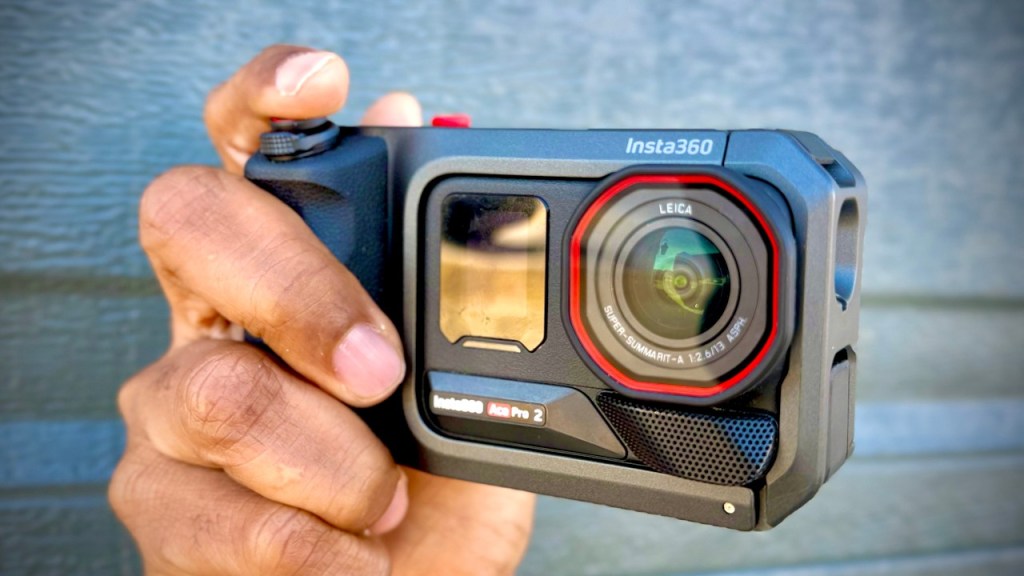
If you want the most “instant camera” experience, the Explorer Grip Pro kit is the move. It makes the Ace Pro 2 feel less like a stripped-down action camera and more like a comfortable everyday shooter.
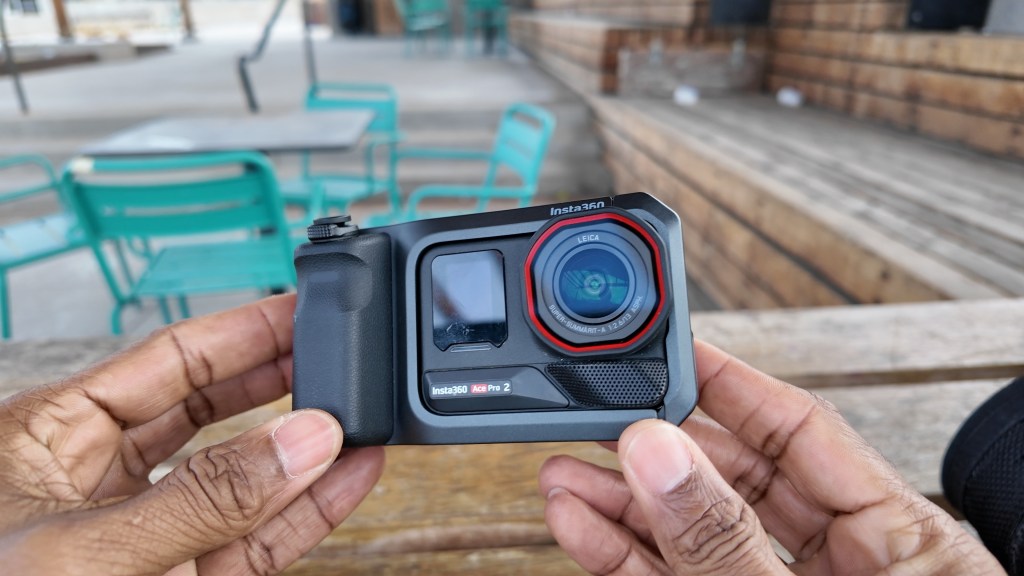
With the Explorer Grip Pro, you get:
- A comfortable grip that feels more natural to hold
- A shutter button for quick capture
- Physical dials for hands-on control
- An internal battery that adds over an hour of extra runtime
One practical note: the full setup is on the larger side for “carry it all day,” but it does break down into a compact package when you store it back in the bag.
How the Pocket Printer Connects and Prints
Once the camera and printer are set up, the workflow is quick and pretty intuitive.
1) Power on the pocket printer
Long press the power button for about 5 seconds.
2) Connect via Bluetooth
On the Ace Pro 2, swipe down, find Bluetooth, select the pocket printer, and connect.
3) Adjust print settings
On the printer menu, you can:
- Turn the watermark on or off
- Choose a frameless layout or a Polaroid-style white border
You can access printer settings in two places: from the printer buttons or from the camera screen. For a more modern look, frameless is a great choice.
Printing Right After You Shoot
When you are ready, your capture and print loop looks like this:
- Compose and take the photo
- Get a print preview
- Press print to start output
This is where the experience really feels “instant photo” rather than “digital file with a delay.”
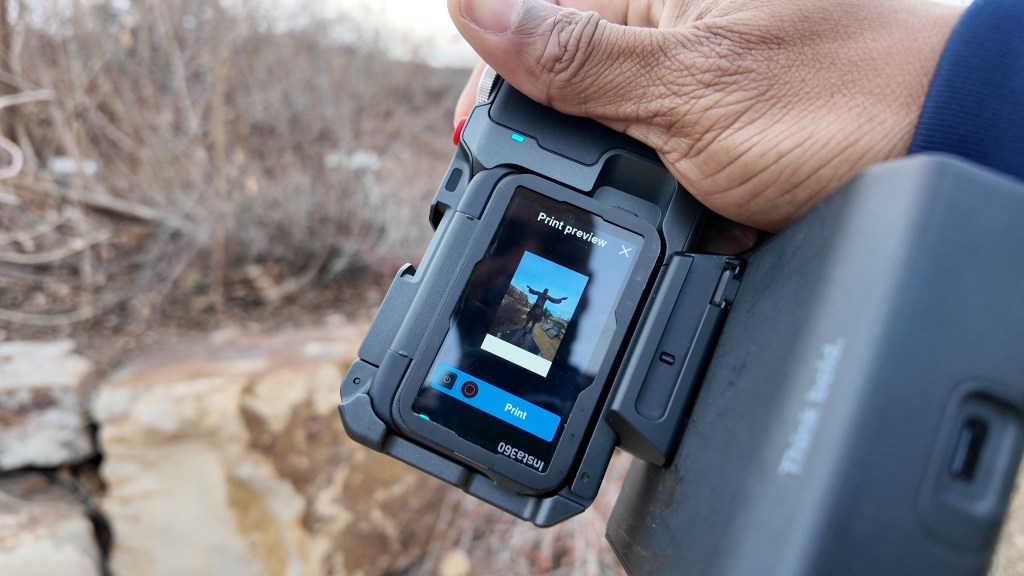
Real-World Test: How Long Does It Take?
After running some test shots, the print timing was close to what you would expect, with one noticeable slow moment.
One print took just under 2 minutes, but there was a long pause before it started moving. In typical use, it should land closer to around 1 minute to 1 minute 15 seconds.
The quality was solid, with one photo coming out slightly overexposed. That is exactly why taking a couple variations helps. Tiny differences in exposure can change how the final print looks.
Best Practices for Getting Great Prints
If you want the insta360 pocket printer to feel reliably “wow,” lean into experimentation.
- Take multiple shots of the same scene to compare exposure
- Try different color profiles to match your style
- Adjust EV (the setup allows you to experiment with values slightly above or below zero)
- Choose your print layout early (frameless vs. Polaroid border changes the whole vibe)
In testing, the camera was set up in photo mode with 50 megapixels, a linear field of view, and a Leica Natural color profile, with EV set to 0. From there, tweaking EV plus or minus 7 was part of the experimentation process.
You Do Not Need the Full Explorer Grip Pro Kit to Print
This is important. People assume you need the whole physical setup. You do not.
You can print directly from the Ace Pro 2:
- Open the photo gallery
- Select a photo
- Use the three buttons menu
- Choose print
Even better, the prints come out auto-laminated, which helps protect them.
Print from the Insta3 App (Including iPhone Photos)
If you want maximum convenience, the app flow is a big deal. You can send photos to the insta360 pocket printer from your Insta3 app library.
That means you can print:
- Photos captured with the Insta360 Ace Pro 2
- Photos and videos already in the Insta3 app
- iPhone photos added into the Insta3 app library
So the printer becomes less about “only printing what I shoot right now,” and more about “printing what I want, whenever I want.”
Is the Insta360 Pocket Printer Worth It?
For the right person, the answer is yes, especially if you like tangible souvenirs and sharing physical prints.
- Worth it if you want instant keepsakes, quick sharing, and a more fun capture workflow
- Not ideal if you only care about high volume output or never print photos
- Best experience comes from using it as a lightweight “moment camera,” with optional Explorer Grip Pro for comfort and extra battery
The insta360 pocket printer delivers something digital cannot: a physical version of the moment, instantly protected by lamination, and ready to share or keep.
If your photography style is about memories first and technical specs second, this is one accessory that actually changes what you do after you take the picture.
 A.V. with Rodney
Leave a comment